
Up Next: one queue for both catalogues
Most players make you choose: a radio app or a podcast app. Up Next is the list that holds both, so an episode you started this morning and the station you fall back to afterwards are the same queue rather than two apps you switch between.
Follow a show
Open any podcast and press the heart. That saves the show to your library and puts its whole back catalogue one click away — you do not have to follow a show to queue a single episode, but it is how you stop hunting for it.
Queue an episode
Every episode row has an add button. Pressing it puts the episode at the end of Up Next; the list lives on your library page and reorders by removing and re-adding.
Pick up where you left off
Your position is written back every fifteen seconds while an episode plays, so the queue shows a progress bar and the time remaining — not the time elapsed. Twenty-two minutes left is the number that decides whether you start it now.
Change the speed
The player offers speed steps for anything with a timeline. Live radio has no timeline, so it gets no speed control and no scrubber — a rate button that silently did nothing would be worse than its absence.
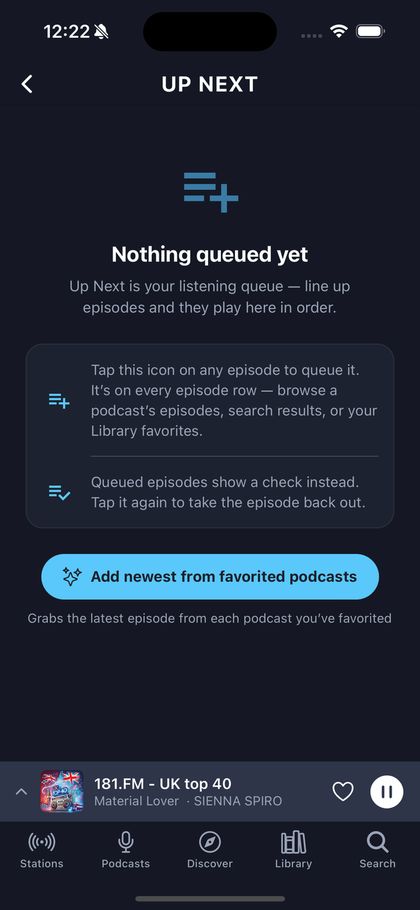
Worth knowing. The queue, resume positions and playback speed all work in the browser. Topping the queue up automatically from the shows you follow is a phone feature.